

SFTP
SuperCharged includes a built-in SFTP browser so you do not need FileZilla or similar tools. Each SFTP connection opens in its own tab (separate from the SSH terminal). Uploads and downloads share one transfer queue for the whole app.
Open SFTP
| From | How |
|---|---|
| Catalogue | Right-click a device → Connect to SFTP, or Catalogue → Connect to SFTP |
Credentials follow the same rules as SSH (catalogue access, Identity defaults, or session sign-in). Failed login reopens the credentials dialog for that connection only.
Browser
- Remote path field (copy from the bar; Ctrl/Cmd+L focuses it, Enter navigates) and admin-oriented file list: name with icons, size, type, Unix permissions, owner UID:GID, modified time
- Upload / Download use the OS file or folder pickers
- Toolbar: Up, Refresh, New folder, Rename, Delete; More for Open / Edit / Permissions / Properties
- Drop files or folders from the desktop onto the list to upload
- Drag a remote item onto a folder in the same browser to move it; drag to another SFTP connection to copy it through SuperCharged
Copy between two servers
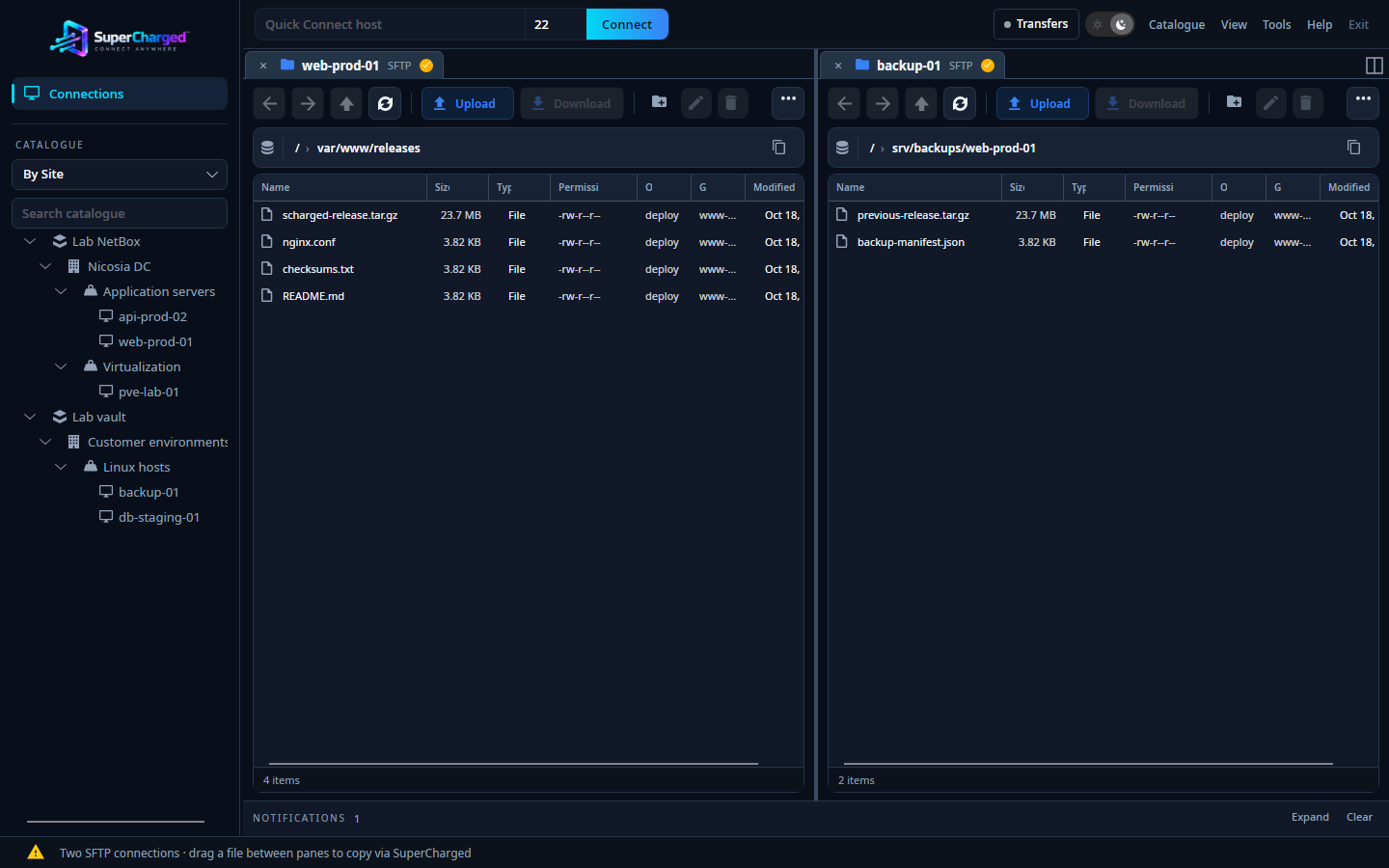
Actual application interface with demonstration data.
- Open an SFTP connection to each server.
- Click ◫ in the session tab bar to split the workspace. The selected tab moves to the right pane. Use a tab’s Move to other pane menu item to arrange connections.
- Navigate to the source on one side and the destination on the other. Drag a file or folder onto the destination browser, or onto a folder within it.
- SuperCharged downloads to a temporary local location and uploads to the destination automatically. Open Transfers to follow progress or cancel.
This is a copy: the source remains on its server. Temporary local files are removed after completion, failure or cancellation. Transfers pass through the computer running SuperCharged, which needs network access to both servers and local disk space for staging.
Existing destination files or folders are not silently overwritten: the job reports an error. Symbolic links and special files are not supported for copies between connections. Cancelling or failing a folder transfer can leave files already copied at the destination.
Each pane keeps an independent group of tabs. You can also use SSH on both sides, or SSH beside SFTP. Click ◫ again to merge the panes without closing the connections.
Keyboard and context menu
| Shortcut | Action |
|---|---|
| F2 | Rename |
| F5 | Refresh |
| Delete | Delete (with confirmation) |
| Backspace | Up one directory |
| Ctrl/Cmd+A | Select all |
| Ctrl/Cmd+C | Copy selected remote path(s) |
| Ctrl/Cmd+V | Paste remote copies, or local paths from the clipboard |
| Ctrl/Cmd+L | Focus remote path |
Right-click: Download, Rename, Delete, Edit, Permissions, Copy path, Properties, Refresh.
Edit… opens a temp local copy in your default editor, then prompts to upload (warns if the remote file changed meanwhile).
Transfers
The toolbar Transfers chip shows active queue status. Click it (or View → Toggle transfers) to open the panel: progress, Cancel, and Clear completed. Up to two transfers run at once; others wait in order.
Idle lock closes SFTP tabs and cancels the queue (same as SSH).